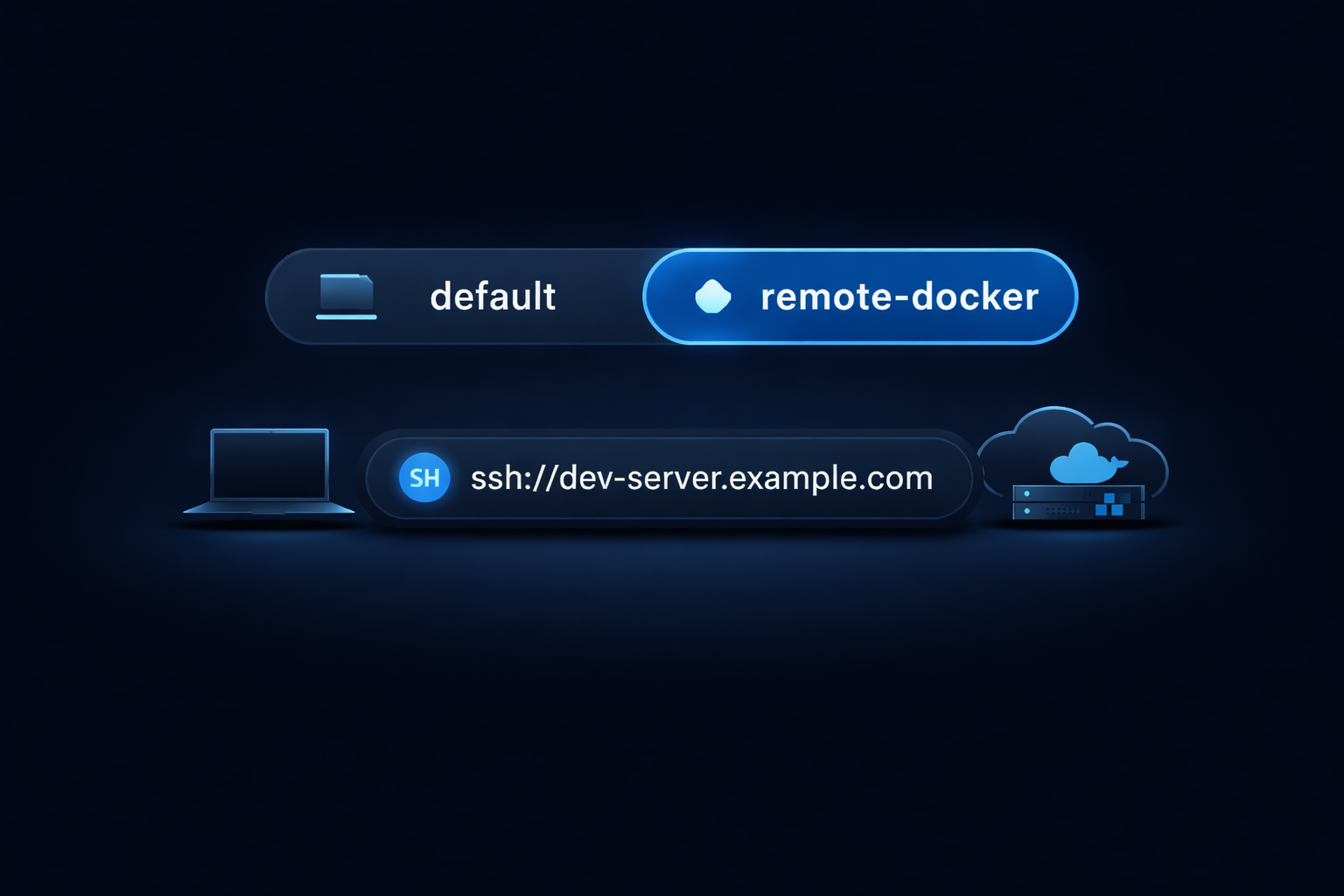
Have you ever wanted to run Docker commands on a remote machine without logging into it every time? Maybe you’re working with a cloud development box, testing on different architectures, or simply leveraging more powerful remote compute resources. Whatever your use case, Docker’s built-in SSH support makes this incredibly straightforward.
I use a Macbook (which is ARM-based) for my local development, and a lot of times I need to build container images for amd64 architecture, also I don’t wanna run a bulky Docker Desktop locally.
In this post, I’ll show you how to execute Docker commands on a remote machine from your local terminal using SSH, and how to make this setup persistent with Docker contexts.
Prerequisites
Before we begin, make sure you have:
- Docker daemon installed and running on the remote machine (see Docker installation guide)
- SSH access to the remote machine
- Docker CLI installed on your local machine (doesn’t need Docker daemon running). If you are on a Mac, you can install it via Homebrew:
brew install docker - An SSH key for authentication to the remote machine
Step 1: Configure SSH for Easy Access
NOTE: If you have already configured your SSH config file to connect to remote machine without specifying username, ssh key every time, you can skip this step and jump to Step 2.
First, let’s configure your SSH settings to make connecting to the remote machine seamless. Modify these environment variables according to your setup:
export REMOTE_HOST="remote-hostname-or-ip"
export REMOTE_USERNAME="remote-username"
export PRIVATE_SSH_KEY_PATH="~/.ssh/ssh-key"
export DOCKER_CONTEXT_NAME="remote-docker"
Run the following command to create an entry in your SSH config file (~/.ssh/config):
cat <<EOF >> ~/.ssh/config
Host ${REMOTE_HOST}
  HostName ${REMOTE_HOST}
  IdentityFile ${PRIVATE_SSH_KEY_PATH}
  User ${REMOTE_USERNAME}
EOF
Example with actual values:
Host dev-server.example.com
  HostName dev-server.example.com
  IdentityFile ~/.ssh/id_rsa
  User ubuntu
Explanation:
Host: The alias you’ll use to connect (can be anything you prefer)HostName: The actual hostname or IP address of the remote machineIdentityFile: Path to your SSH private keyUser: Your username on the remote machine
Test the connection:
ssh "${REMOTE_HOST}"
If configured correctly, you should connect to the remote machine without being prompted for a password or having to specify the SSH key.
Step 2: Run Docker Commands Over SSH
Now that SSH is configured, you can run Docker commands on the remote machine using the -H (host) flag:
docker -H "ssh://${REMOTE_HOST}" ps
This command will show you all running containers on the remote machine, just as if you had run docker ps while logged into that machine.
Try a few more commands:
# List images on the remote machine
docker -H "ssh://${REMOTE_HOST}" images

# Run a container on the remote machine
docker -H "ssh://${REMOTE_HOST}" run -d nginx

# View container logs
docker -H "ssh://${REMOTE_HOST}" logs <container-id>
Step 3: Create a Persistent Docker Context
Typing -H ssh://REMOTE_HOST every time gets tedious. Docker contexts provide a cleaner solution by letting you save and switch between different Docker environments.
Create a new context for your remote machine:
docker context create "${DOCKER_CONTEXT_NAME}" --docker "host=ssh://${REMOTE_HOST}"
List all available contexts:
You can run docker context ls to see all your Docker contexts, for example:
➜  docker context ls
NAME              DESCRIPTION                               DOCKER ENDPOINT                               ERROR
remote-docker                                               ssh://dev-server.example.com
default        *  Current DOCKER_HOST based configuration   unix:///var/run/docker.sock
Switch to the remote context:
docker context use "${DOCKER_CONTEXT_NAME}"
And you should see the context has switched:
➜  docker context ls
NAME              DESCRIPTION                               DOCKER ENDPOINT                               ERROR
remote-docker  *                                            ssh://dev-server.example.com
default           Current DOCKER_HOST based configuration   unix:///var/run/docker.sock
Now run Docker commands without the -H flag:
# All these commands now run on the remote machine
docker ps
docker images
docker run -d redis
docker logs <container-id>
Switch back to your local Docker:
docker context use default
The context setting persists across terminal sessions, so you don’t need to set it again unless you want to switch contexts.
Benefits and Use Cases
Using a remote machine as your Docker runner offers several advantages:
- Leverage remote compute resources: Run resource-intensive containers without taxing your local machine
- Test on different architectures: Easily test containers on ARM, x86, or other architectures without cross-compilation
- Centralized development environment: Keep your development environment on a powerful cloud machine while working from a lightweight laptop
- No Docker Desktop required: You only need the Docker CLI locally; the daemon runs remotely
- Team collaboration: Multiple developers can share access to the same Docker environment
- Cost optimization: Spin up powerful cloud instances only when needed for Docker workloads
Troubleshooting Tips
SSH connection fails:
- Verify your SSH key has the correct permissions:
chmod 600 ~/.ssh/${PRIVATE_SSH_KEY_PATH} - Ensure you can connect via SSH manually:
ssh "${REMOTE_HOST}" - Check that the hostname is correct in your SSH config
Permission denied when running Docker commands:
- Make sure your user on the remote machine is in the
dockergroup:sudo usermod -aG docker "${REMOTE_USERNAME}" - You may need to log out and back in for group changes to take effect
- Alternatively, ensure the Docker daemon on the remote machine allows your user to connect
Context not switching:
- Verify the context was created successfully:
docker context ls - Try removing and recreating the context:
docker context rm "${DOCKER_CONTEXT_NAME}"then create it again - Check for typos in the SSH hostname
Performance issues:
- If your local repository is large, transferring the build context can be slow over SSH; consider using
.dockerignoreto minimize the build context and only send necessary files
Using with Kubernetes
You can also use kind to create a Kubernetes cluster on the remote machine either by specifying the IP address of the remote machine or using SSH port forwarding.
Method 1: Using Remote Machine IP Address
NOTE: Only use this method if your remote machine’s IP address is not accessible to the public internet (i.e., it’s on a private network or behind a firewall). If your remote machine is publicly accessible, this could expose your Kubernetes API server to the internet. See more about this in kind’s documentation.
The first step is to find the IP address of the remote machine. Run this command on your local machine to resolve the hostname:
REMOTE_HOST_IP=$(host ${REMOTE_HOST} | cut -d' ' -f4)
Next, create a kind configuration file that tells kind to bind the API server to this IP address:
cat <<EOF > /tmp/config.yaml
kind: Cluster
apiVersion: kind.x-k8s.io/v1alpha4
name: remote-cluster
networking:
  apiServerAddress: "${REMOTE_HOST_IP}"
  apiServerPort: 6443
EOF
Finally, create the kind cluster on the remote machine using this configuration:
kind create cluster --config /tmp/config.yaml
This method allows your local kubectl to connect directly to the remote kind cluster without SSH tunneling.
Method 2: Using SSH Port Forwarding
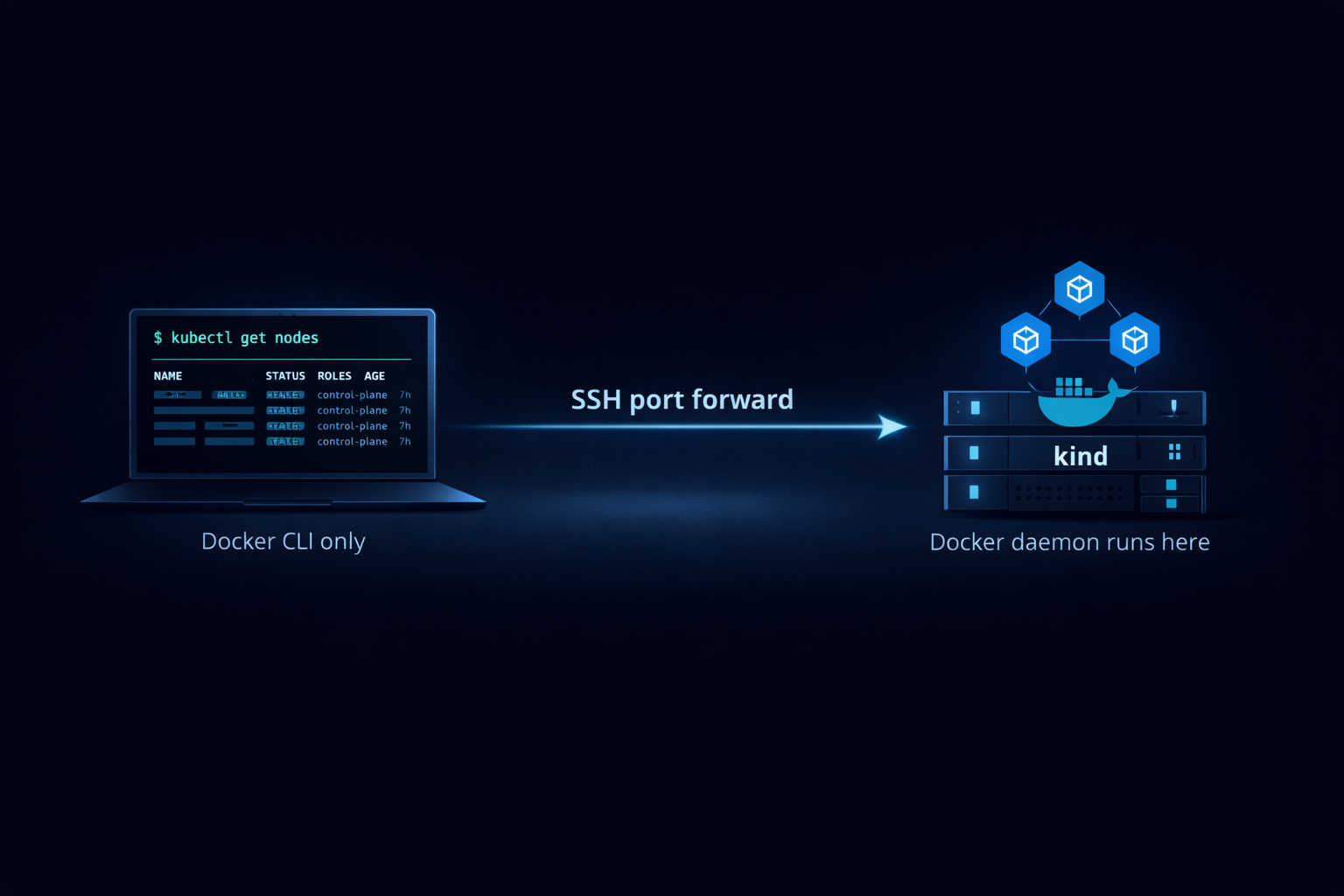
This method is more secure and works regardless of whether your remote machine is on a public or private network, as it uses SSH tunneling to access the cluster.
First, create the kind cluster on the remote machine as usual:
kind create cluster --name remote-cluster
Next, extract the API server port from your kubeconfig and set up SSH port forwarding:
API_SERVER_PORT=$(kubectl config view -o jsonpath='{.clusters[?(@.name=="kind-remote-cluster")].cluster.server}' | sed 's|https://||' | cut -d':' -f2)
ssh -L ${API_SERVER_PORT}:localhost:${API_SERVER_PORT} ${REMOTE_HOST}
Explanation:
- The first command extracts the port number that kind assigned to the API server (usually a random high port)
- The second command creates an SSH tunnel that forwards that port from your local machine to the remote machine
- Keep this SSH session running in the background
Now in a new terminal window on your local machine, you can access the kind cluster running on the remote machine:
kubectl get nodes
Conclusion
Running Docker commands on a remote machine via SSH is a powerful workflow that combines the convenience of local development with the resources of remote infrastructure. By setting up SSH config and Docker contexts, you can seamlessly switch between local and remote Docker environments with just a single command.
The context you create persists across terminal sessions, making this a truly set-it-and-forget-it solution. Whether you’re managing cloud development environments, testing cross-platform builds, or simply offloading compute-heavy tasks, this approach keeps your workflow smooth and efficient.
Have you found other creative uses for remote Docker contexts? I’d love to hear about your use cases!